Real gamepad input for Windows and supported Macs
Use Your Phone as a Real Gamepad
CoreOrbits GamerPad turns your Android or iPhone into a wireless gamepad for Windows and supported Macs. Unlike keyboard/mouse mapping tools, it focuses on virtual gamepad input for controller-supported games.
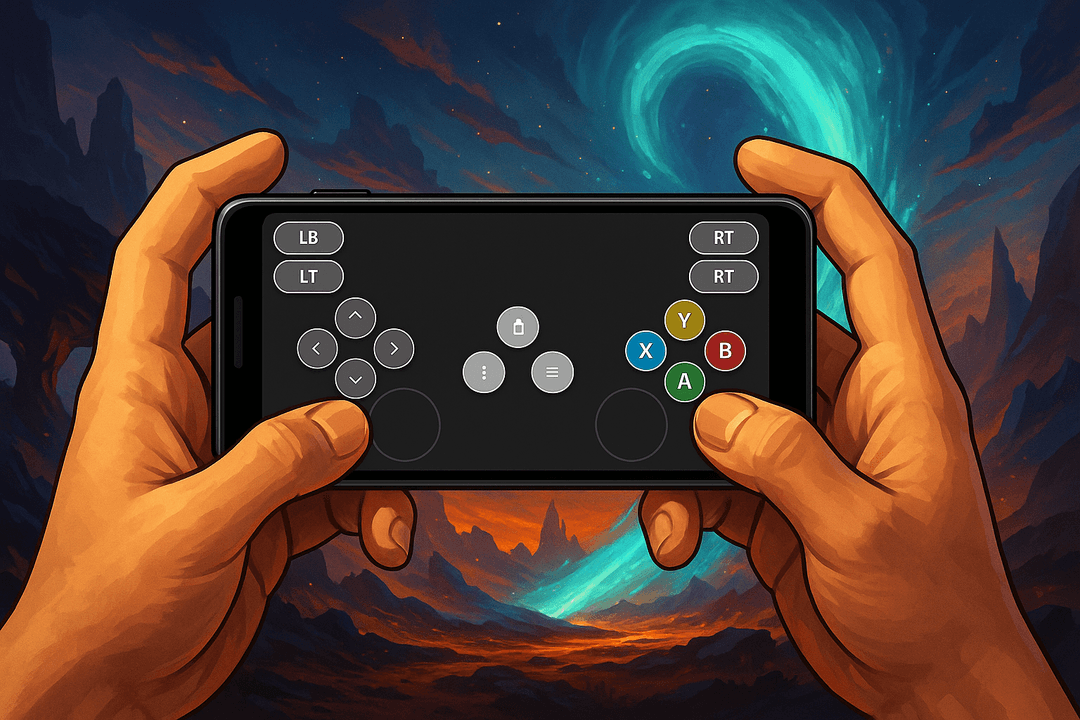
Phone as gamepad features
Wireless Connection
Use your phone as a controller over the same Wi-Fi network with auto discovery and QR fallback.
Customizable Controls
Build custom layouts for a virtual gamepad that fits the game you are playing, with forgiving touch zones for no-look taps.
Low Latency
Responsive virtual gamepad input for controller-supported games on Windows and supported Macs.
How it works
Pair your phone and start playing
CoreOrbits GamerPad keeps setup simple whether you want an Android phone as gamepad, an iPhone as gamepad, or a supported Mac virtual gamepad.
Install CoreOrbits GamerPad on your phone.
Download the desktop companion app for Windows or Mac.
Connect both devices to the same Wi-Fi network.
Scan the QR code and start playing.
Works with Steam controller games
Use GamerPad with controller-supported Steam games. Your phone works like a wireless gamepad instead of a keyboard shortcut panel, so you can play racing games, platformers, emulators, retro games, and local multiplayer titles without buying a physical controller.
Supported platforms
Why it matters
Virtual gamepad input, not keyboard mapping
Many phone controller tools on Mac are built around keyboard and mouse shortcuts. GamerPad is designed for games that expect controller input, so your phone can behave like a gamepad on Windows and supported Macs.
Keyboard/mouse mapping
- Maps phone taps to keys, shortcuts, clicks, or pointer movement.
- Works best when a game is designed for keyboard and mouse.
- Can feel wrong in games that specifically ask for a controller.
GamerPad virtual gamepad
- Focuses on virtual controller input for controller-supported games.
- Lets multiple phones join as separate controllers for local multiplayer.
- Pairs over Wi-Fi with automatic discovery and QR fallback.
FAQ
Answers for using CoreOrbits GamerPad as a Steam phone controller, virtual gamepad, and phone as controller for PC or Mac.
Can I use my phone as a gamepad for PC?
Yes. Install GamerPad on your Android phone or iPhone, install the Windows or supported Mac desktop companion app, connect both devices to the same Wi-Fi network, then pair automatically or with the QR code.
Does CoreOrbits GamerPad work with Steam?
Yes, GamerPad is designed for controller-supported Steam games. Compatibility depends on the game accepting gamepad input.
Can I use iPhone as a gamepad?
Yes. The iPhone app can pair with the Windows or Mac companion app and work as a wireless gamepad.
Can I use Android as a PC controller?
Yes. GamerPad lets you use an Android phone as gamepad for a Windows PC or supported Mac over Wi-Fi.
Does GamerPad work on Mac?
Yes. GamerPad has a Mac desktop companion app for supported Macs and is built around virtual gamepad input rather than keyboard/mouse mapping.
Do both devices need to be on the same Wi-Fi?
Yes. Your phone and computer should be connected to the same Wi-Fi network for pairing and gameplay.
Is it a virtual gamepad?
Yes. GamerPad is a virtual gamepad that turns your phone screen into customizable game controls for games that accept controller input.
Is GamerPad keyboard mapping on Mac?
No. GamerPad is built to appear as a gamepad on supported Macs. Games that only accept keyboard and mouse input may still require keyboard/mouse controls.
Do I need a physical controller?
No. GamerPad is built for playing controller-supported games without buying a separate physical controller.
Download GamerPad
Install the desktop application on your computer and pair it with the GamerPad mobile app.
Desktop application
Windows desktop application
Installer package for Windows desktops, gaming handhelds, and dedicated gaming systems.
Windows 10 or later
Alternative desktop builds
If you need another installer, you can access it below.
macOS desktop application
macOS 15.4 or later
Mobile application
Install the companion app on Android or iPhone and use your phone as the controller surface.
If the mobile app is already installed, you only need the appropriate desktop build. The app will try to discover your desktop automatically, and you can scan the on-screen QR code if it is not found.
Setup overview
01
Install GamerPad on Windows or macOS
02
Open the GamerPad mobile app
03
If your desktop is not found automatically, scan the on-screen QR code